DVD-quality lessons (including tabs/sheet music) available for immediate viewing on any device.
Take your playing to the next level with the help of a local or online banjo teacher.
Weekly newsletter includes free lessons, favorite member content, banjo news and more.
Premier Sponsors


|
Please note this is an archived topic, so it is locked and unable to be replied to. You may, however, start a new topic and refer to this topic with a link: http://www.banjohangout.org/archive/324603
Richard Hauser - Posted - 11/13/2016: 09:46:44
I have downloaded and used the Tabledit manual to search for a solution. No luck so far.
When the tab is shown, actual musical notes are shown instead of numerical information. For example, say the first fret on the "B" string, a "C" note, is fretted,
When tab is displayed, I am seeing the note name "C" instead of a "1".
Note that I downloaded the tab. It downloaded and displayed correctly, but while looking at the different options, I must have inadvertently changed something.
I made sure the tab options were set correctly. Any advice will be appreciated and will probably appear before I find an answer.
Edited by - Texasbanjo on 11/13/2016 13:37:52
Texasbanjo - Posted - 11/13/2016: 10:57:32
Richard Hauser - Posted - 11/13/2016: 12:12:26
I had done that using several different ways with no success. I tried setting "notation/apply/O.K." 5 or 6 times in a row. Finally it "reset" to numbers. What confuses me is why this happened. Nowhere is notation checked and although the note names (i.e. c, d, etc.) were displayed, no standard notation was ever printed. I had also deleted all instruments except banjo.
Texasbanjo - Posted - 11/13/2016: 13:37:38
janolov - Posted - 11/14/2016: 00:44:45
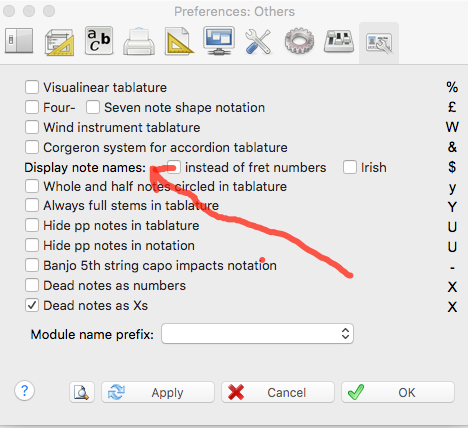
Try this step by step
It is also possible to get to the Option box by File --> Print Preview --> Printer Setup
I made a simple tab where I tried the different choices to show the tablature, see the attached pdf files. It is the same TablEdit File, but with different choices of showing the tablature.
The letter notation is a little square but is explained in page 48 in the manual "You can also choose to have the tablature displayed in a form where the usual numbers are replaced by letters of the alphabet. In this case, "a" replaces "0", "b" replaces "1", etc. The letter "j" is skipped. These conventions have their origins in the earliest form of tablature (siffra or chiffra) as a notational system."
There is also a way to change figure to note names: "Press [$] ([shift][4]) to change the numbers in the tablature to scale notes (C,D,E,F, etc.) This comes in handy to print a fretboard map showing notes on all strings/frets"
Edited by - janolov on 11/14/2016 01:01:23
janolov - Posted - 11/14/2016: 01:14:36
I discovered there are two types of lettering systems. The first a, b, c, etc is explained above. The second system is removed by this procedure
If the name of scale notes is shown instead of the fret numbers they can be changed to fret numbers by this procedure:
Edited by - janolov on 11/14/2016 01:20:00
Richard Hauser - Posted - 11/15/2016: 06:47:50
janolov - Thanks for the information. I will check that out.
TablEdit - Posted - 12/07/2016: 15:06:20
Janolov's answer is perfect.
TablEdit displays the note names when the $ key is pressed. It displays fret numbers back when the $ is pressed again.
By the way, this setting (which can be activated by mistake) doesn't stick. You have just to quit TE and to relaunch it.
Best
Edited by - TablEdit on 12/07/2016 15:07:17
Jack Baker - Posted - 12/07/2016: 15:17:23
Hi Matthieu,
On my PC I have to hold down the Shift key and then the $...I can also just go to the options page in Tabledit and go to Tablature presentation and check in the box on the 2nd line down to convert to the letter names of the notes..happy Holidays Matthieu...Jack p.s. yes, Jan covered it really well...
Originally posted by TablEdit
Janolov's answer is perfect.
TablEdit displays the note names when the $ key is pressed. It displays fret numbers back when the $ is pressed again.
By the way, this setting (which can be activated by mistake) doesn't stick. You have just to quit TE and to relaunch it.
Best
Edited by - Jack Baker on 12/07/2016 15:18:37
Terms of Use | Privacy Policy | Privacy Consent (EU/GDPR Only)
Copyright 2026 Banjo Hangout. All Rights Reserved.